
Know your settings before the moment's gone.
Stop Down turns Claude, ChatGPT, Gemini or Grok into a patient photography coach. Tell it the scene, your camera and lens and what went wrong last time, and get settings that work, the reason behind each one, a simple editing workflow, honest gear advice for your budget, and a critique of your shots from your description.
Get Stop Down Photo Coach for $5 Calculate depth of field
$5 once · card, Apple Pay or Google Pay · download in a minute
Into more than one hobby? Get all 70 hobby skills for $19, this one included.
- One-time $5
- Instant email delivery
- 14-day refund
- Works in Claude, ChatGPT, Gemini and Grok
Settings: river landscape at golden hour
Full frame · 24 mm lens · tripod · 6-stop ND filter
Aperture priorityISO 100RAW
- Aperturef/11 for depth, before diffraction softens itSharp front to back at this focal lengthExposure
- FocusFocus at 1.8 m: hyperfocal for 24 mm at f/11Sharp from about 0.9 m to infinityDepth
- ShutterAbout 1/30 s at EV 12 without the filterTripod and 2-second timerExposure
- Filter6-stop ND: 1/30 s becomes about 2 sSmooths the water; meter first, then add the filterLong exposure
- FrameRocks in the lower third, river leading to the lightKeep the horizon level and off the center lineComposition
Everything a good photography teacher keeps in their head
One skill, six jobs. Claude, ChatGPT, Gemini or Grok picks the right one from what you ask.
The exposure triangle
Aperture, shutter speed and ISO explained by what each one does to the picture, not just the numbers.
Settings by scene
Portraits, kids and pets, sports, landscapes, night, indoor events and travel, with a starting point for each.
Depth of field math
Depth of field, hyperfocal distance and focus stacking, worked out for your sensor and lens.
Editing workflow
A simple order for edits: crop, exposure, white balance, contrast, color, then local fixes and export.
Gear advice by budget
What to buy next, or not, for what you shoot, and when a lens beats a new body.
Composition critique
Describe or upload a shot and get specific notes on light, subject, framing and what to try next.
Ask it like you'd ask a friend who shoots for a living
It knows why shots fail, so the fix fits your camera and your scene.
It's motion blur from a slow shutter (high confidence)
Indoors there's much less light than it looks, so the camera picks a slow shutter speed and moving kids blur. The fix is to protect shutter speed and let ISO rise.
- Mode: shutter priority (S or Tv) at 1/250 s for moving kids, 1/125 s if they're sitting still.
- ISO: Auto ISO with a maximum of 6400. Some grain is far better than blur, and it cleans up well in editing.
- Aperture: the kit lens will open to about f/3.5 to f/5.6. Zoom out to the wide end to get the widest aperture.
- Light: move them near a big window, and turn to face it. This helps more than any setting.
- Focus: continuous autofocus (AF-C or AI Servo) with face or eye detection if your camera has it.
The best upgrade for this
A 50 mm f/1.8 lens (often around $125 to $250) lets in roughly 4 to 10 times more light than the kit lens at the same focal length. It's the cheapest big improvement for indoor shots.
Example answer from the full skill. Your answers depend on what you ask.
Honest about gear and settings
Photography is full of gear envy and magic presets. Stop Down tells you what actually improves your pictures.
- Light firstBetter light improves a photo more than a new camera. It says so before it suggests spending.
- Math shownDepth of field, hyperfocal and exposure numbers come with the formula, so you can check them.
- Gear when it mattersIt recommends a purchase only when your current kit is the limit, and says what to skip.
- Respect people and placesAsk before photographing people up close, follow local rules on drones and private property, and never look at the Sun through a viewfinder.
Up and running in two minutes
No app to learn and nothing to install on your computer. It lives inside Claude, ChatGPT, Gemini or Grok.
Buy once
Pay $5 by card, Apple Pay or Google Pay. Your download link arrives by email in about a minute.
Add it to Claude, ChatGPT, Gemini or Grok
Upload the ZIP under Skills in Claude, or the unzipped folder in Gemini. It takes about 30 seconds. In Grok, upload the ZIP, or paste the included paste-in file into a new skill. In ChatGPT, add the included paste-in file to a Project.
Just ask
"Settings for fireworks?" "Why is my background not blurry?" "Critique this portrait."
Pick your app for the exact clicks
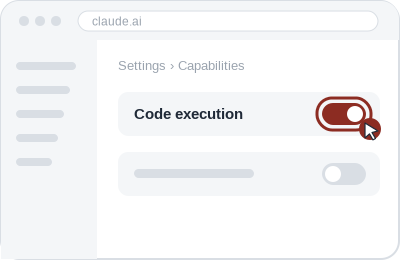
1In Settings, then Capabilities, turn on code execution.
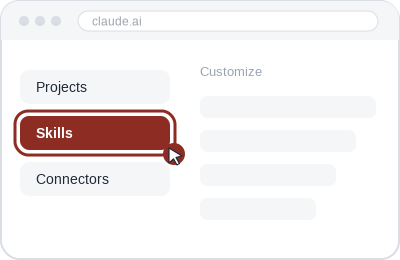
2Open Customize, then Skills.
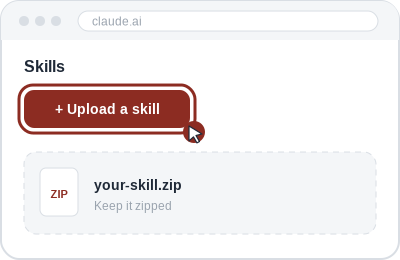
3Click +, choose Upload a skill, pick the ZIP. Keep it zipped.
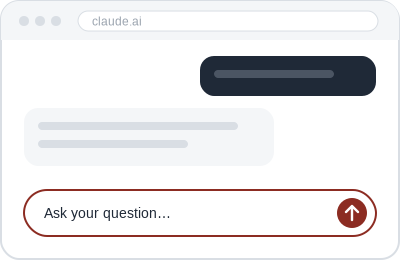
4Start a new chat and ask. Claude picks up the skill.
Works on every Claude plan, including the free one. Free plans have lower usage limits.
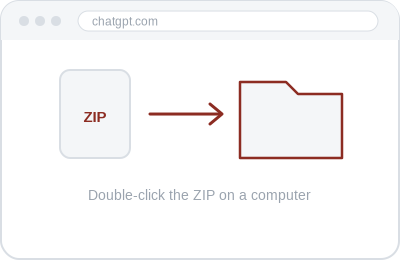
1On a computer, unzip the download and find ANY-AI-PASTE-VERSION.txt.
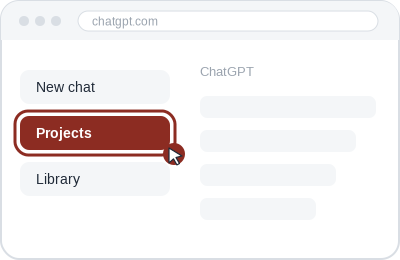
2In ChatGPT, open Projects and make a new project.
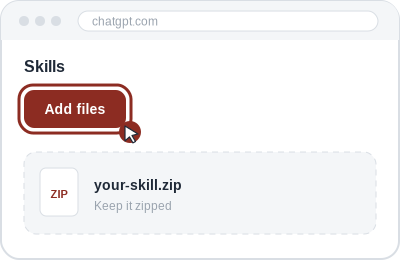
3Add the .txt file to the project. In its instructions, type: Follow the attached file.
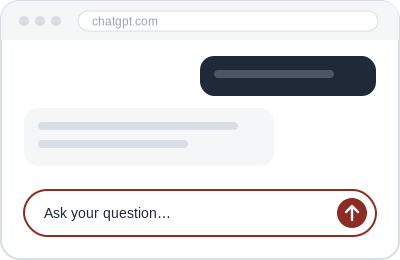
4Start a chat in that project and ask. On a Business, Enterprise or Edu plan, you can upload the ZIP under Skills instead.
Personal ChatGPT plans (Free, Plus, Pro) don't have a Skills page yet, so you use the paste-in version in a Project. On a Business, Enterprise or Edu plan, go to chatgpt.com/skills, choose Add, then Upload from your computer.
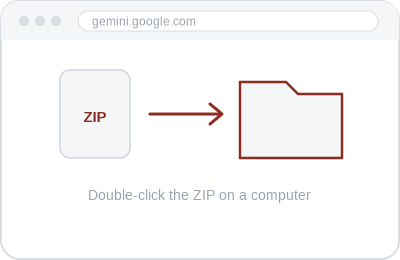
1On a computer, unzip the download. You get a folder.
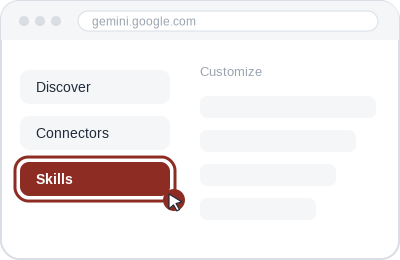
2At gemini.google.com, open Customize, then Skills.
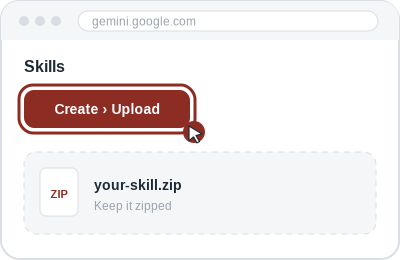
3Choose Create, then Upload, then folder. Pick the unzipped folder.
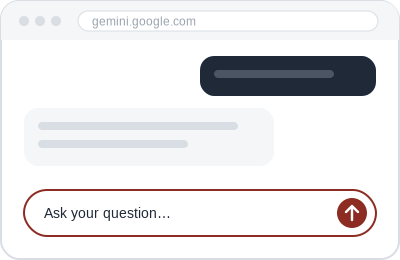
4Start a new chat and ask.
Gemini takes the unzipped folder, not the ZIP. Menus in Gemini change often, so names may differ slightly.
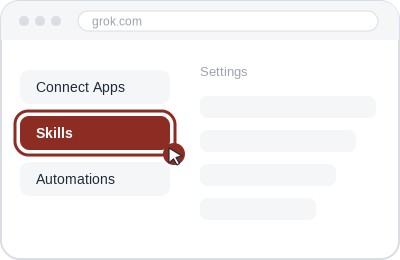
1At grok.com, open Settings, then Skills.
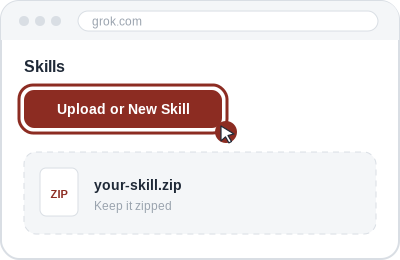
2If you see Upload, pick the ZIP. If you only see New Skill, use the next step.
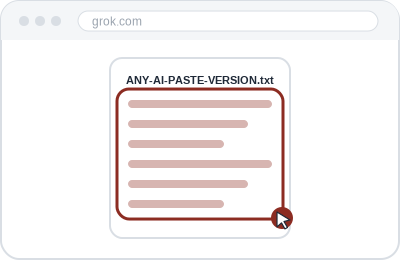
3New Skill: name it, then paste the text of ANY-AI-PASTE-VERSION.txt (below the line of equals signs) into Instructions.
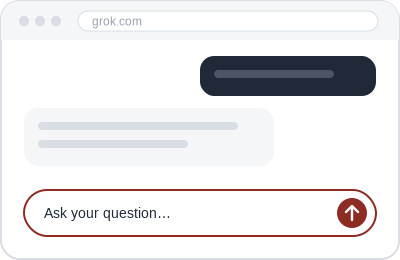
4Save it, start a new chat and ask.
Some Grok plans upload the ZIP; others show a New Skill form, where you paste the skill text in. Menus in Grok change often, so names may differ slightly.
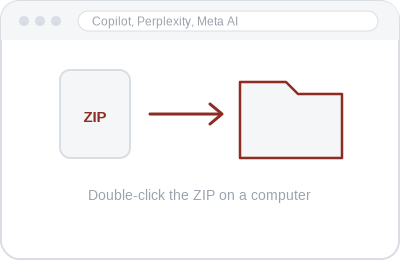
1No Skills page? Unzip the download on a computer.
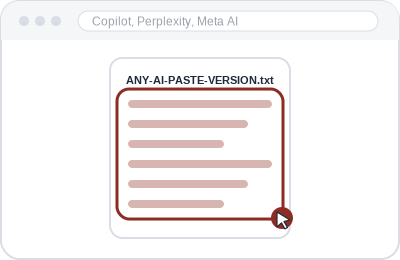
2Open ANY-AI-PASTE-VERSION.txt and copy everything.
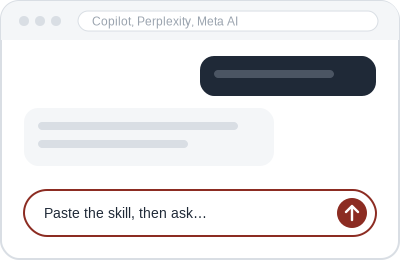
3Paste it into a new chat, then ask your question.
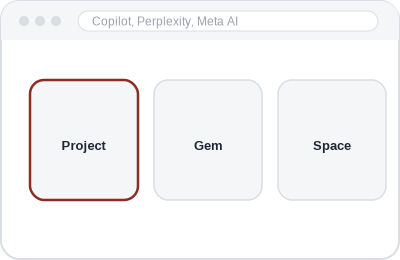
4To keep it on, add it to a ChatGPT Project, Gemini Gem or Perplexity Space.
Using Claude Code, Codex, Cursor or another coding agent? Unzip it into the skills folder, for example unzip stop-down-photo-coach.zip -d ~/.claude/skills/
On your phone? Go ahead and buy: the download link goes to your email and works for a year. Adding a skill is easiest from a computer, in a web browser or the desktop app, so open that email there when you're ready. Want to try it on your phone today? Open the ZIP, copy ANY-AI-PASTE-VERSION.txt into any chat app, and ask.
Start with the free Scene Card
A small skill that gives you a settings card for one scene: mode, aperture, shutter, ISO, focus and one composition tip, with why each one works.
- Matched to your scene, camera and lens
- Starting settings with the reason for each
- One fix for the most common mistake
Get Stop Down Photo Coach
Pay once, use it whenever you need it. Includes the free Scene Card too.
How to add it
Upload the ZIP under Skills in Claude, or the unzipped folder in Gemini (in Grok, upload the ZIP or paste the paste-in file into a new skill; in ChatGPT, add it to a Project), then start a new chat and try: "I shoot a crop-sensor camera with an 18-55 mm kit lens. I'm photographing my nephew's soccer game on Saturday afternoon. What settings should I use?"
See the clicks for your app. Every download also comes with a paste-in version for any other chat, and a Start Here PDF.
Step-by-step guides with pictures: Claude · ChatGPT · Gemini · Grok
Stop Down Photo Coach
Settings for any scene, sharp focus, a clean edit and honest gear advice.
$5 one time
- The exposure triangle, made simple
- Settings by scene with reasons
- Depth of field and hyperfocal math
- A step-by-step editing workflow
- Gear advice by budget
- Composition critique from your description
- Updates for a year
Card, Apple Pay or Google Pay through Stripe. Taxes calculated at checkout. 14-day refund.
Giving it as a gift? Buy it, forward the email, and print a gift card.
See a real answer from the full skill
You ask: My photos of my kids indoors are always blurry or grainy. I have a beginner camera with the kit lens. What settings should I use?
It's motion blur from a slow shutter (high confidence)
Indoors there's much less light than it looks, so the camera picks a slow shutter speed and moving kids blur. The fix is to protect shutter speed and let ISO rise.
- Mode: shutter priority (S or Tv) at 1/250 s for moving kids, 1/125 s if they're sitting still.
- ISO: Auto ISO with a maximum of 6400. Some grain is far better than blur, and it cleans up well in editing.
- Aperture: the kit lens will open to about f/3.5 to f/5.6. Zoom out to the wide end to get the widest aperture.
- Light: move them near a big window, and turn to face it. This helps more than any setting.
- Focus: continuous autofocus (AF-C or AI Servo) with face or eye detection if your camera has it.
The best upgrade for this
A 50 mm f/1.8 lens (often around $125 to $250) lets in roughly 4 to 10 times more light than the kit lens at the same focal length. It's the cheapest big improvement for indoor shots.
Into more than one hobby? The Skill Pass gets you all 70 hobby skills, this one included, for $19.
New to AI skills?
Stop Down is a skill: a set of expert instructions you add to your own Claude, ChatGPT, Gemini or Grok account, so it answers like a photography coach who knows the craft.
- Using Gemini? Unzip it and upload the folder on its Skills page. Using Grok? Under Settings, Skills, upload the ZIP or paste the paste-in file into a new skill. Using ChatGPT? Add the included paste-in file to a Project.
- New to all of them? Claude is an AI assistant made by Anthropic. Make an account at claude.ai: skills work on every Claude plan, including the free one, with code execution turned on in Settings, Capabilities.
- Try the free Scene Card skill first. If you like it, the full skill is one purchase.
Not ready for an AI app? The free depth of field calculator on this site works in any browser, no account needed.
Free photography tools
No sign-up, they run in your browser.
Made by Nic Hubert, What If Labs
I run What If Labs from British Columbia, Canada. I build each skill with AI help and test it on real questions, and a separate reviewer checks it before it goes on sale. If it doesn't do what this page says, email me at hello@whatiflabs.ai and I'll fix it or refund you.
No reviews yet: this store is new. Tell me how it went and I'll use it to make the skill better.
Questions
Does it work with my camera?
Yes. Tell it the camera and lens and it uses the right terms for your brand's modes and menus. For exact menu locations, check your camera's manual.
Can it look at my photos?
If your AI can see images, upload one and it critiques it. If not, describe the shot and the settings from the file info, and it works from that.
Does it help with phone photography?
Yes. It covers light, composition and editing for phones, plus pro or manual modes where your phone has them.
Will it tell me to buy expensive gear?
No. It starts with technique and light, then suggests the cheapest gear that removes your real limit, with a budget range.
What do I need to use it?
A Claude, ChatGPT, Gemini or Grok account. In Claude it works on any plan, including the free one, with code execution turned on (Settings, Capabilities). Free accounts have lower usage limits, so long planning sessions go further on a paid plan. It works in Claude on the web, the desktop app and Claude Code. In Gemini and Grok, upload it on the Skills page. In ChatGPT, personal plans (Free, Plus, Pro) don't have Skills yet, so you add the included paste-in file to a ChatGPT Project; Business, Enterprise and Edu plans can upload the ZIP under Skills. Coding agents that read SKILL.md files work too. Using Copilot, Perplexity, Meta AI or another chat with no Skills page? Every download includes a paste-in version (ANY-AI-PASTE-VERSION.txt) that works in any AI chat.
What if it doesn't work for me?
Email hello@whatiflabs.ai within 14 days of buying and we'll refund you in full. No forms, no questions.
How is this different from just asking an AI?
A general AI answer is often vague or skips steps. The skill gives your AI an expert's method: what to ask you first, the checklists and calculations to run, and the mistakes to warn you about. You get consistent, specific answers instead of a different guess each time.
Do I pay every month?
No. It's a one-time price, and updates to the skill are free.
Can I get a refund?
Yes. Every purchase comes with a 14-day refund, no questions asked. Reply to your receipt email and we'll take care of it.
What if it gets something wrong?
It shows its working, so you can check numbers and dates. Tell it what's off and it will correct itself. For anything where a mistake costs money or safety, double-check before you act, as you would with any advice.
Is my information private?
The skill runs inside your own Claude, ChatGPT, Gemini or Grok account, and we never see your chats. When you buy, Stripe handles the payment and we keep your email and order so we can send the download. The terms and privacy page has the details.